
Restaurant Guide
Everything a partner restaurant can do — in the mobile app, on a phone or a tablet, and in the web portal. Written to be read start to finish, or dipped into when you need one answer.
Getting started
As a partner restaurant you serve meals to clients of Daniel's Table. A client is assigned to your restaurant, comes in, and you record the meal. The programme settles the bill — the client never pays you directly.
There are two ways in, and they do the same job:
- The mobile app — on a phone or a tablet, whichever you keep at the counter. Scan a client's code, photograph the bill, done.
- The web portal — best for reviewing history and payments on a larger screen.
You only need one account. The same email and password sign you in to both.
Registering your restaurant
Registration is open to anyone — you do not need an invitation. An administrator reviews and approves your restaurant before clients can be assigned to it.
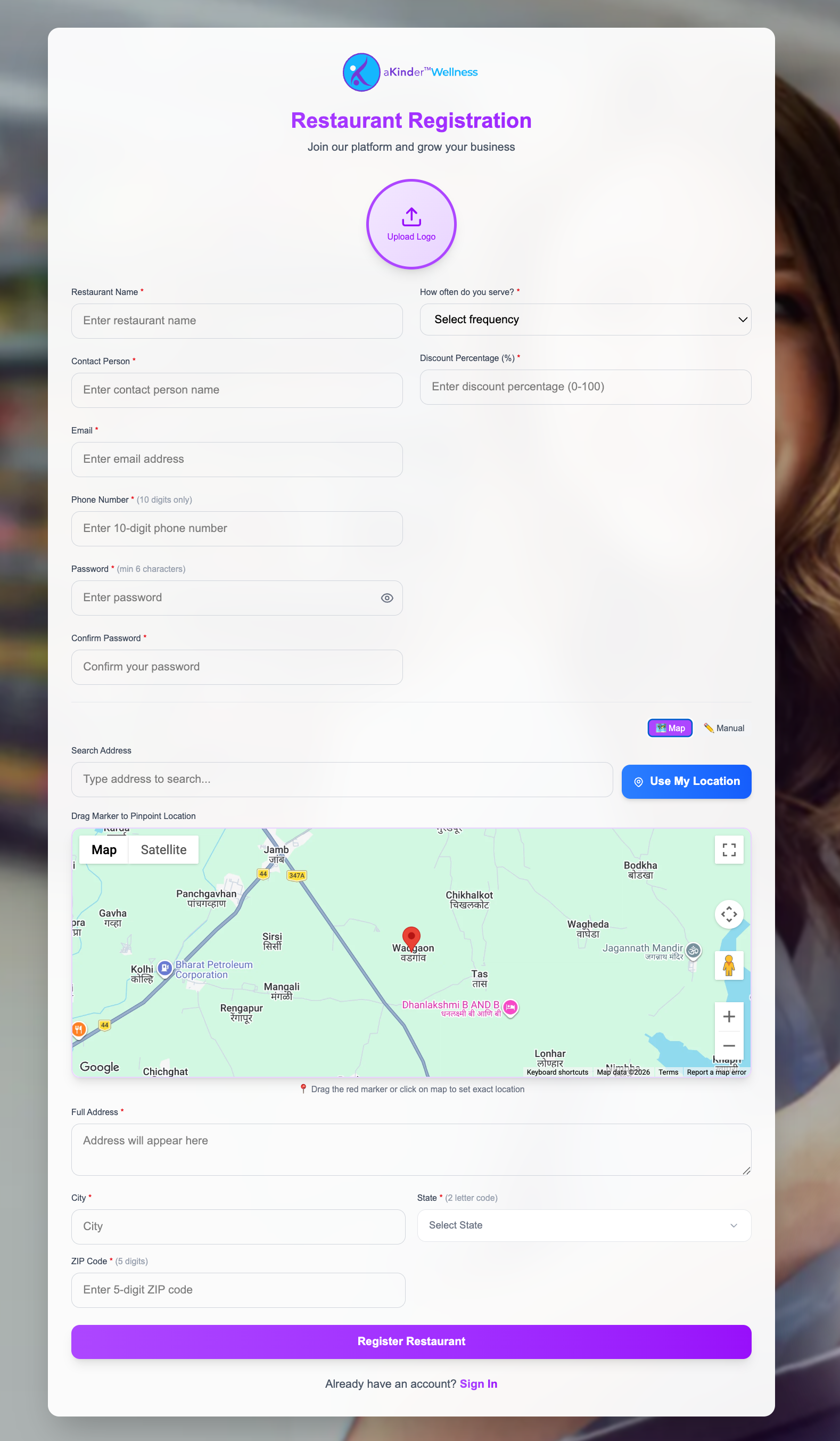
- 1Open the registration form and enter your restaurant name, contact person, email and phone number.
- 2Enter your address. Start typing and pick your address from the suggestions so your location is placed correctly on the map — this is what lets clients find you and get directions.
- 3Set how often you serve, and the discount percentage you are offering the programme.
- 4Choose a password. Submit the form and wait for approval.
Until an administrator approves you, you can sign in but no clients will be assigned. Approval is not automatic.
Signing in
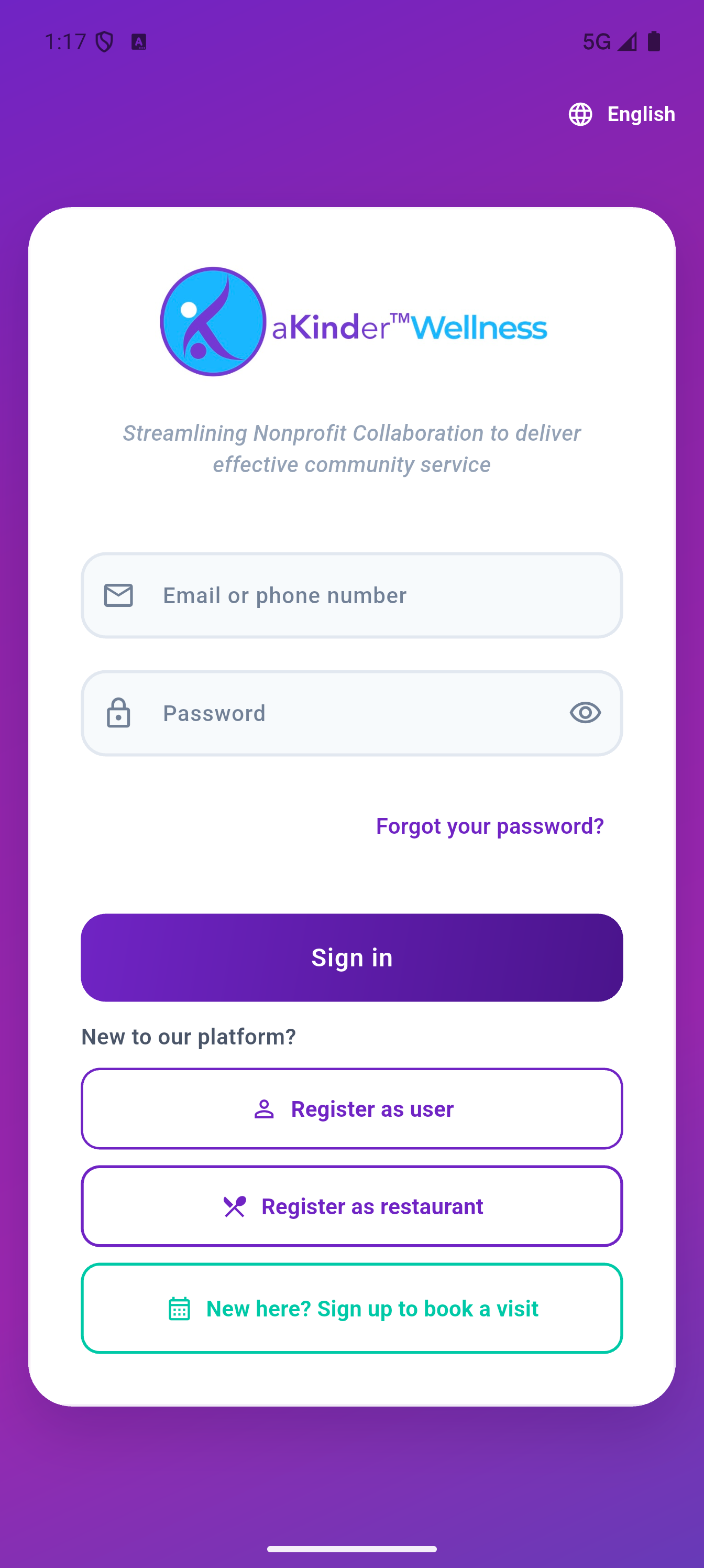
Use the email and password from registration. If you have forgotten your password, use Forgot password on the sign-in screen and follow the link sent to your email.
Your dashboard
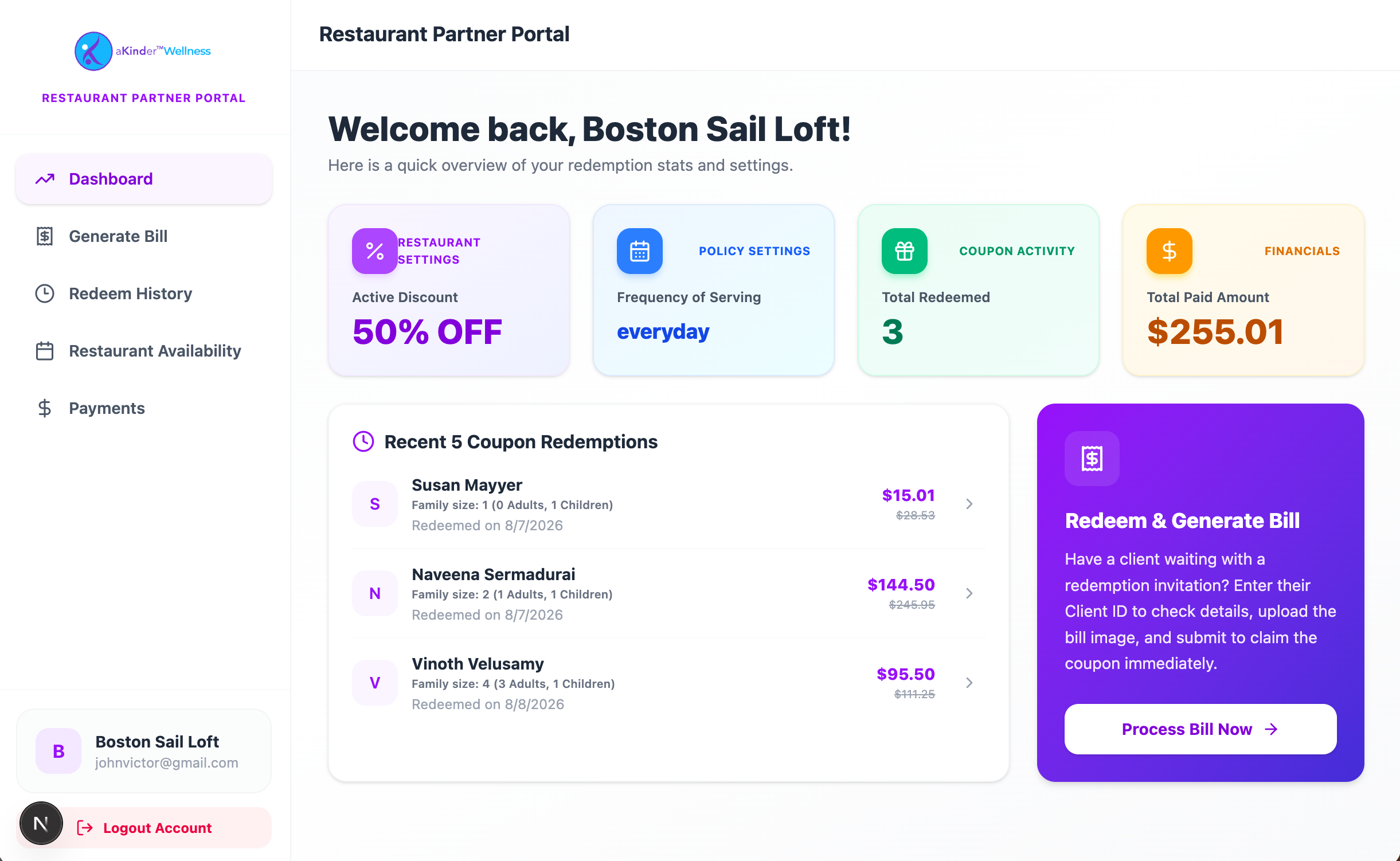
After signing in you see your restaurant at a glance: how many meals have been redeemed, how much has been paid, and what is outstanding.
Serving a client
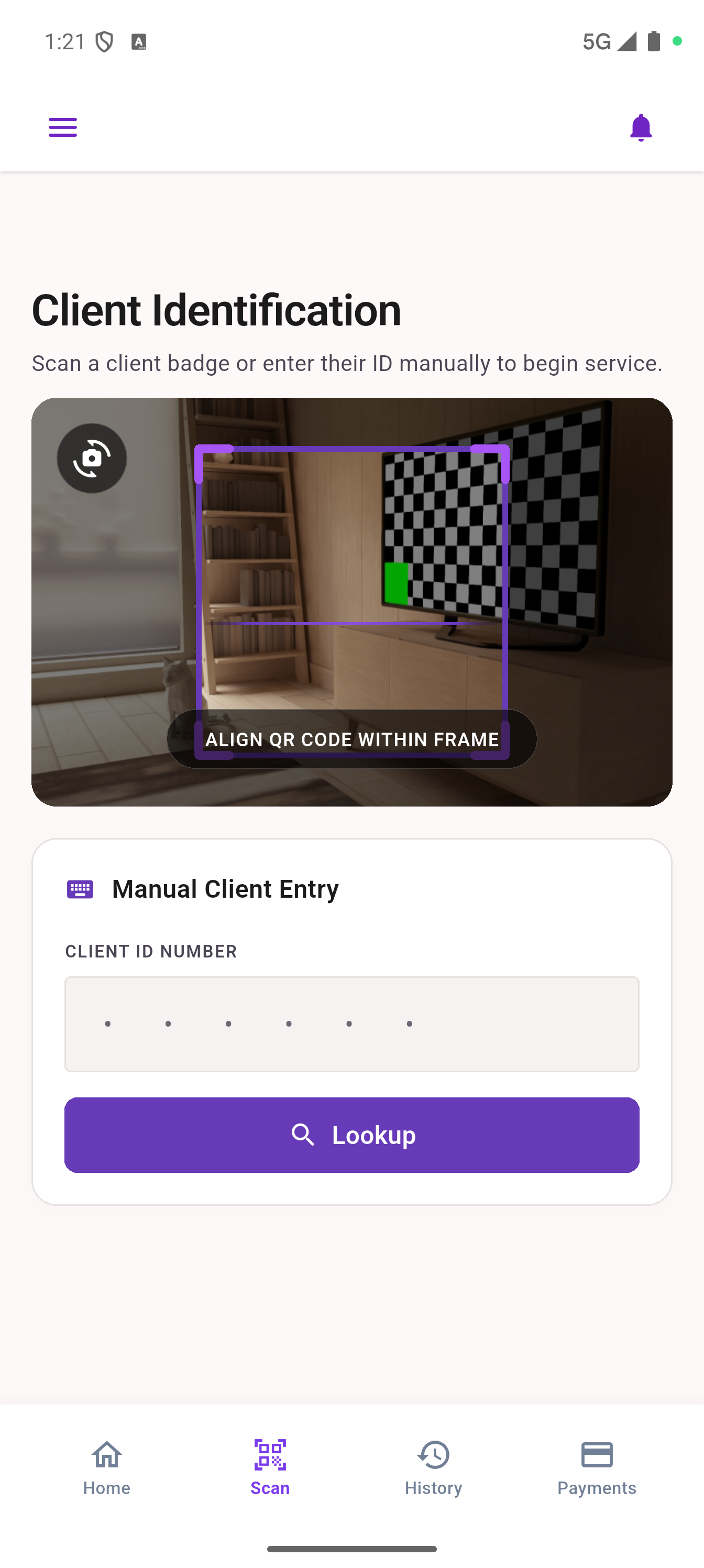
A client assigned to you arrives with a code in their app. You can scan it, or type their client ID if scanning is not convenient.
- 1Open the scanner and scan the client's code, or type their client ID.
- 2Check the client's details appear. This confirms they are assigned to your restaurant and have not already redeemed.
- 3Serve the meal, then record the bill.
If the app tells you the client is assigned to another restaurant, they cannot be served here. Send them back to Daniel's Table — only staff there can move an assignment.
Uploading the bill
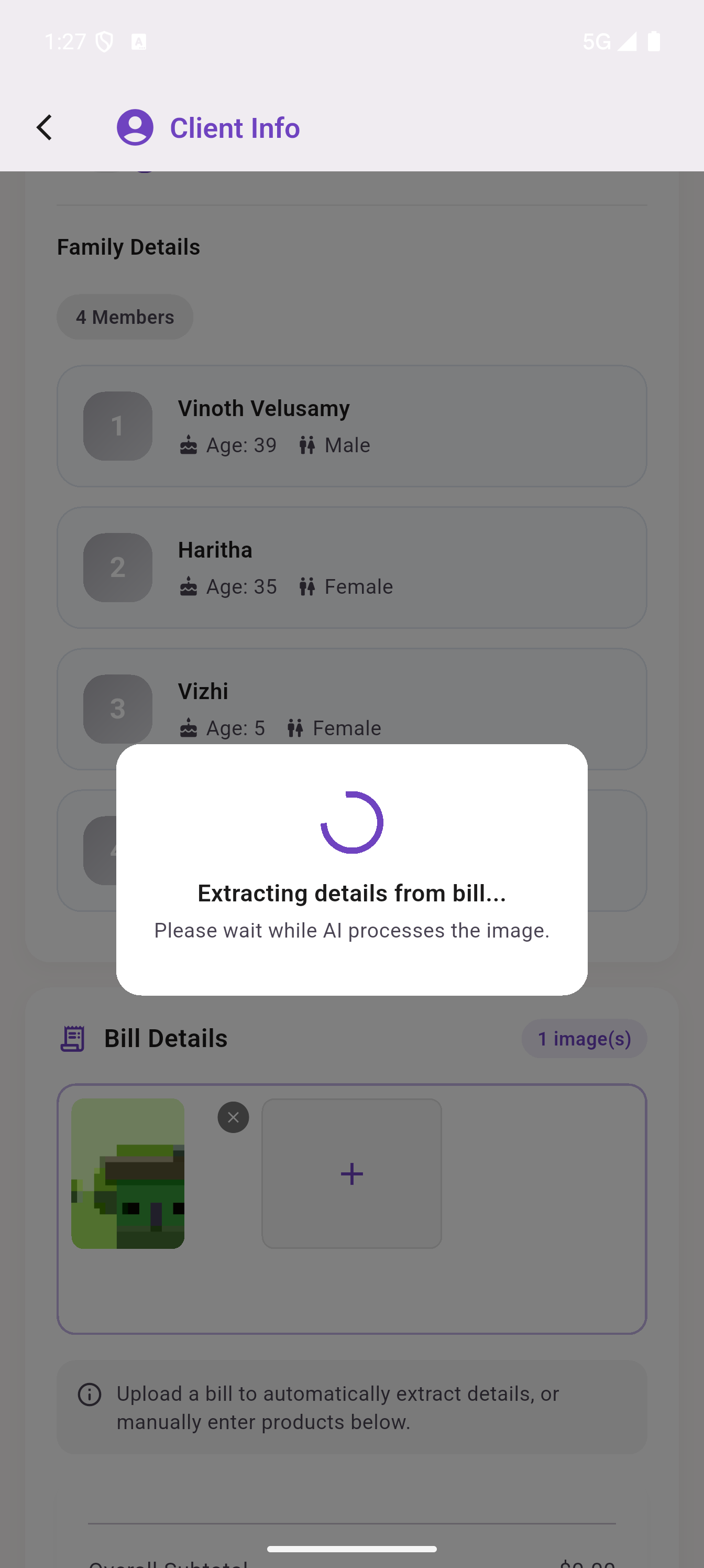
Photograph or upload the itemised bill. The app reads the items, prices and tax from the image so you do not have to type them in.
- 1Take a photo of the bill, or choose an image file.
- 2Wait a moment while the items are read from it.
- 3Check what was read — see the next section.
Checking the bill details
Reading a photograph is not perfect, so everything is editable before you submit. Check it against the paper bill.
- Items — correct any product name, quantity or price. Each line total updates as you type, and so does the bill total.
- Tax — editable. Type the figure directly; you do not have to nudge it up in steps.
- Discount — fixed at the percentage agreed with your restaurant. It applies to the whole bill, tax included.
- Add or remove a row — if the photo missed an item or invented one.
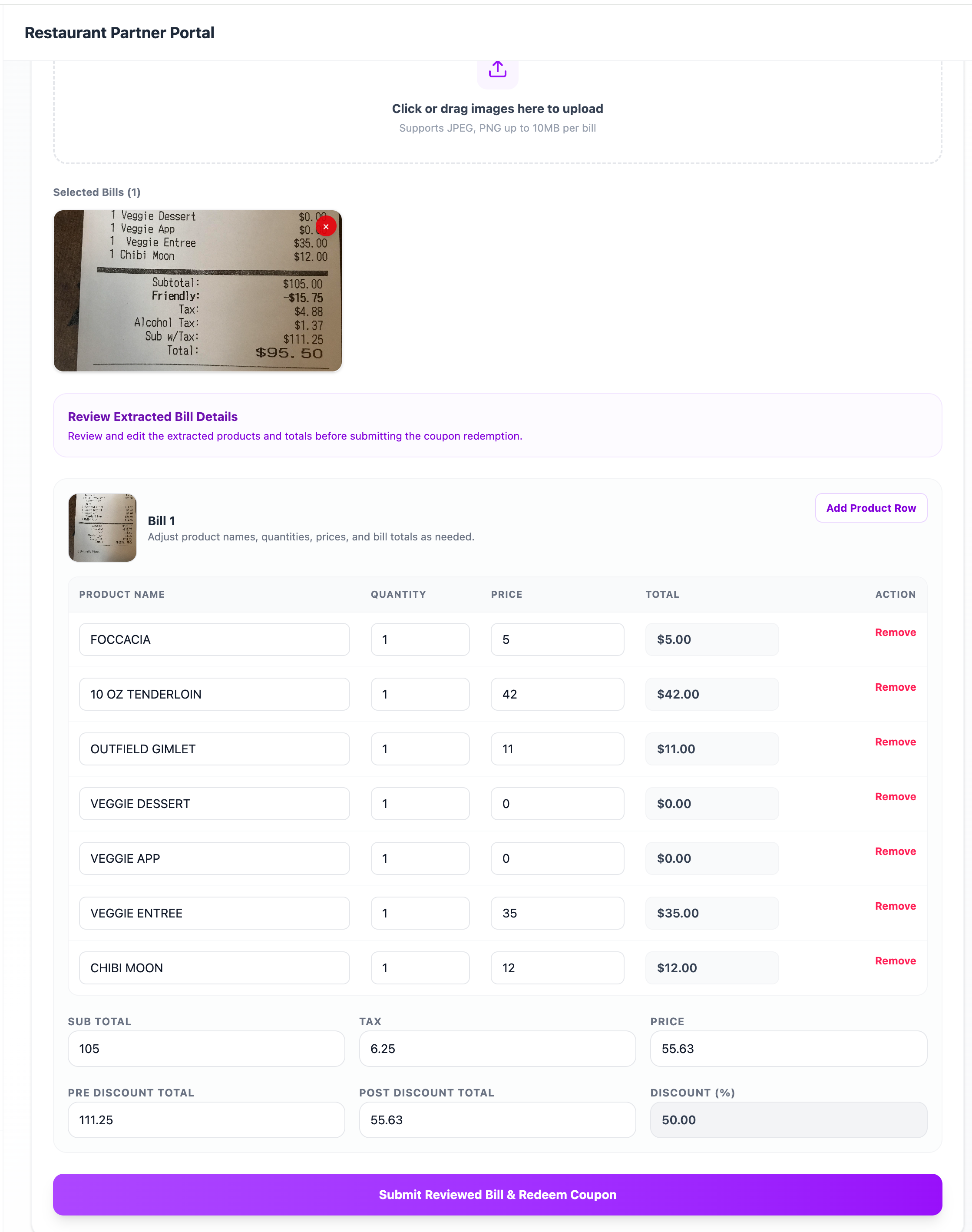
Submit only once the totals match the paper bill. This is what the programme pays against.
Redemption history
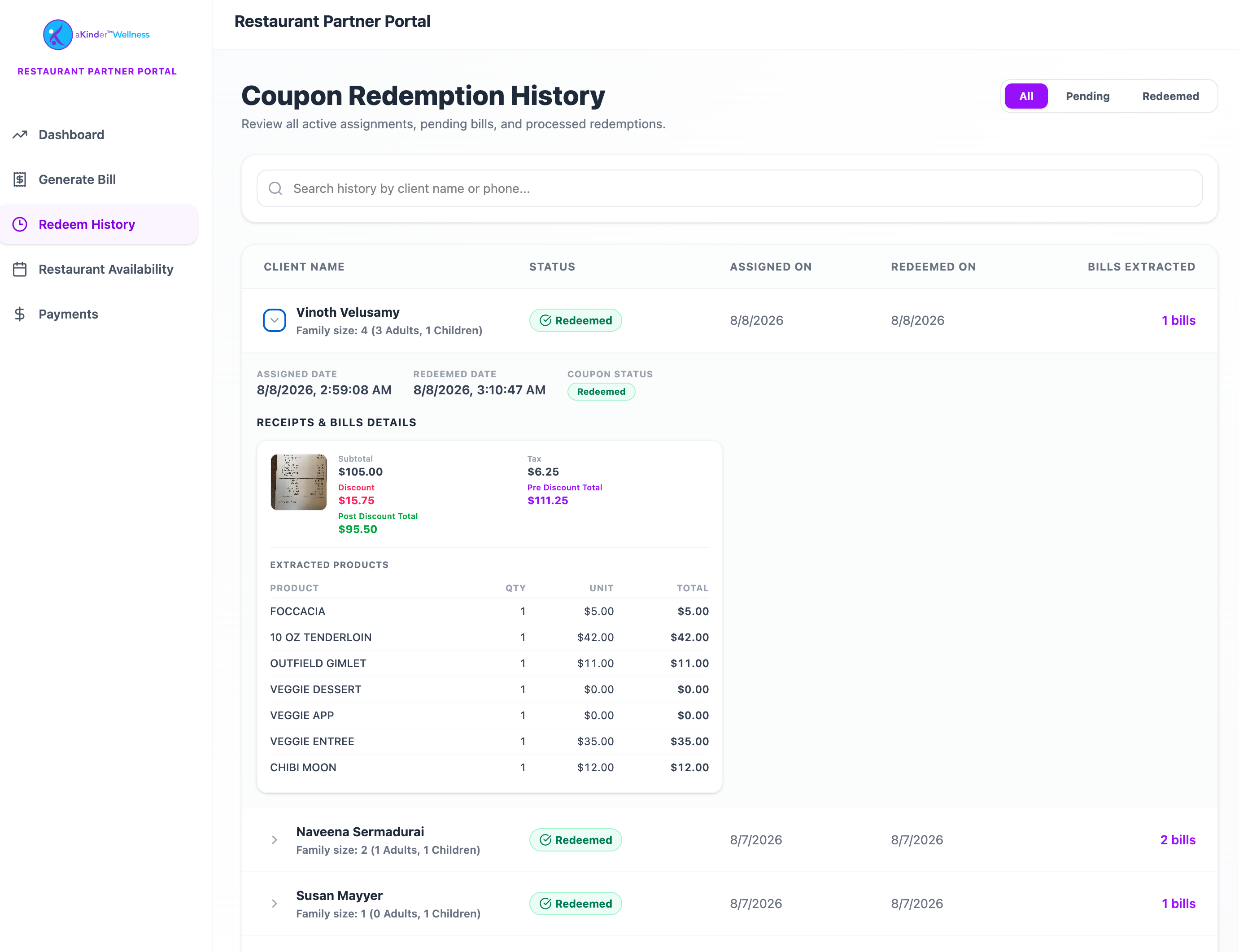
Every meal you have recorded is listed with its date, the client, the bill total and the images you uploaded. Use it to check a past visit or to reconcile a payment.
Payments
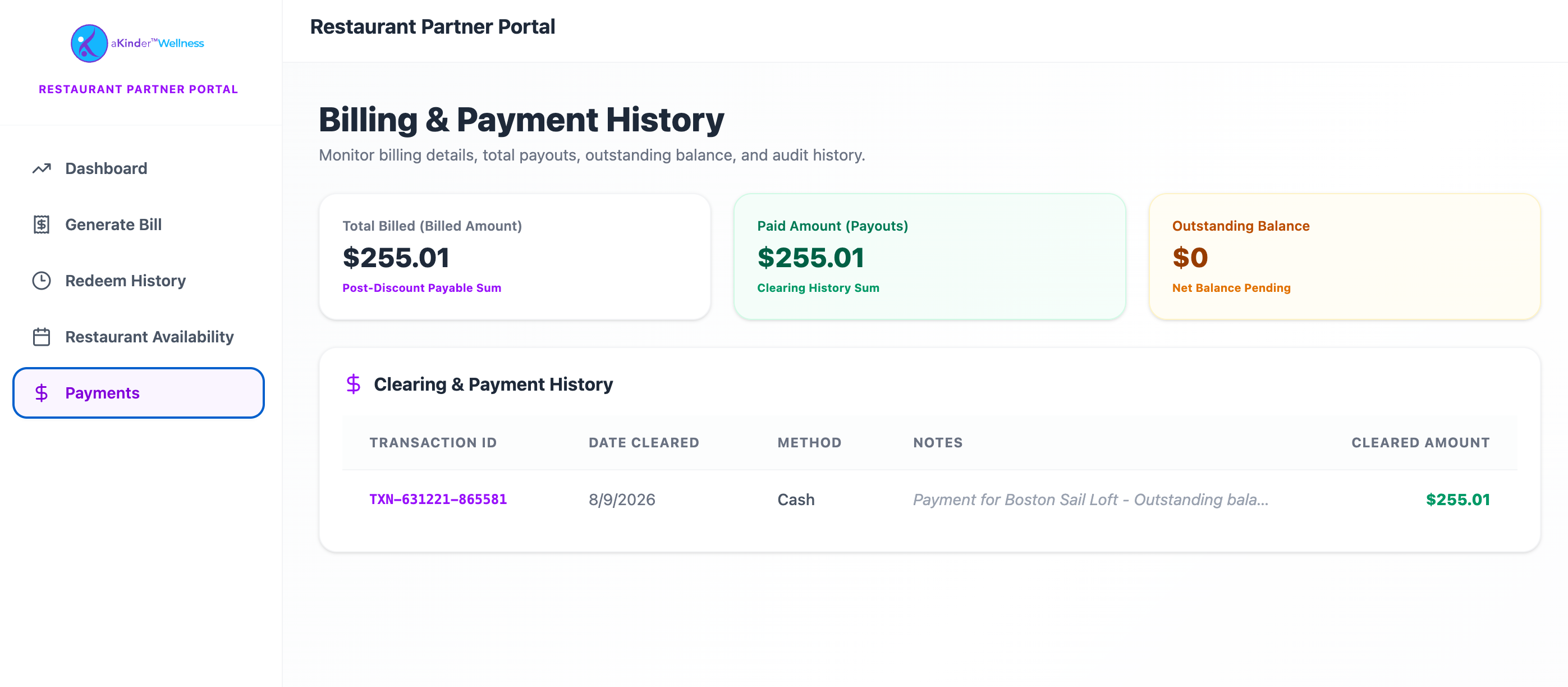
The payments view shows what has been paid to your restaurant and what is still outstanding, with the redemptions each payment covers.
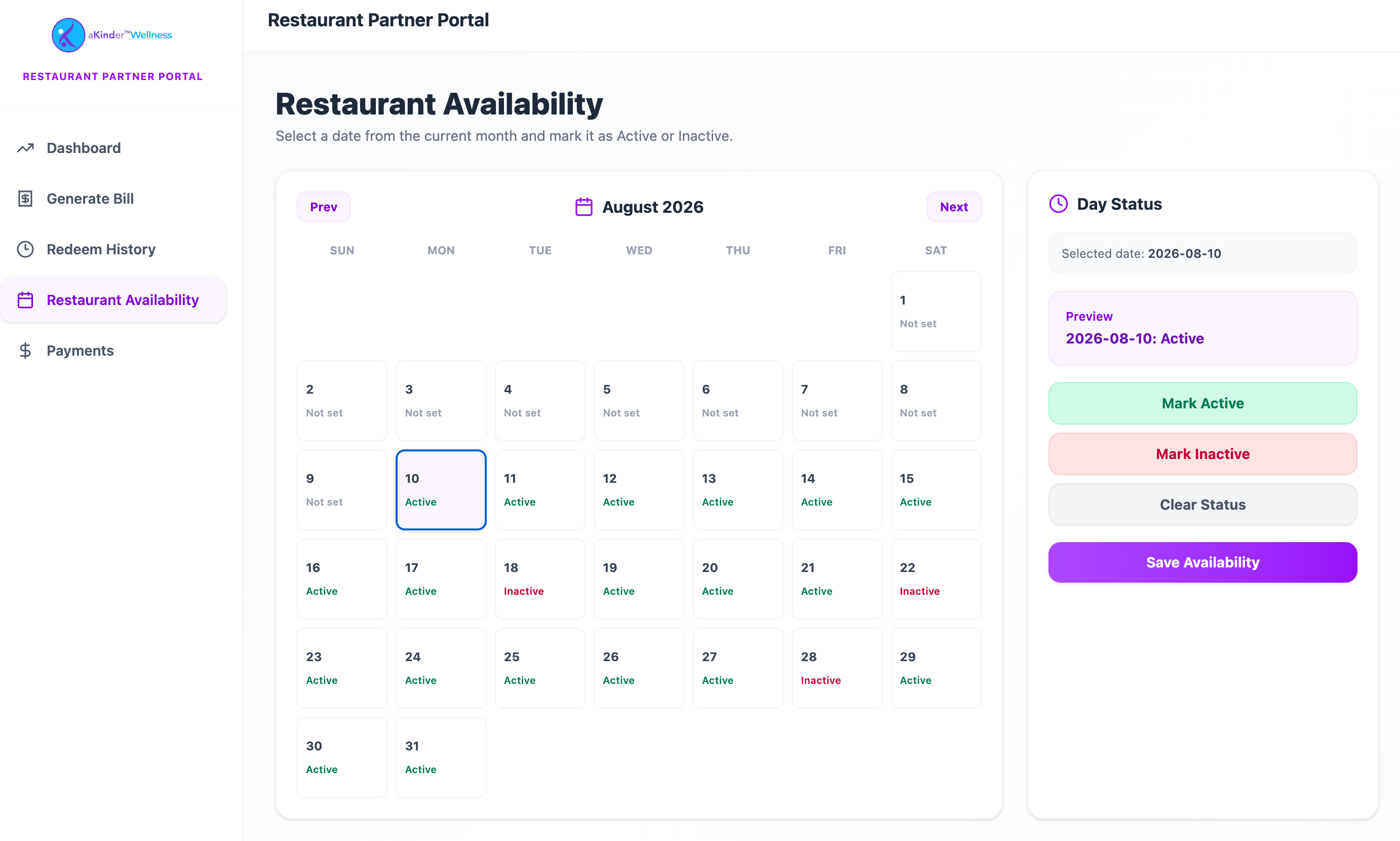
Opening days and availability
Tell the programme when you are open. Clients are only assigned to you on days you can serve them, so keeping this current prevents someone arriving to a closed kitchen.
You can mark specific dates as unavailable — holidays, closures — without changing your regular pattern.
What the messages mean
| You see | What to do |
|---|---|
| This client is assigned to another restaurant and has not redeemed yet | They cannot be served here. Send them back to Daniel's Table. |
| This client has already redeemed their meal here | The meal is already recorded. Check your history before recording it again. |
| This client has not been assigned to a restaurant yet | Nothing to redeem. Ask them to check with Daniel's Table. |
| Client not found | The code or ID did not match anyone. Re-scan, or check the digits. |